
How to Manage Line Break Code for Flawless Cross-Platform Software
· 24 min read

Why line breaks in code still matter (and what this guide will teach you)
Have you ever opened a piece of computer code and found it really hard to read?

Maybe all the words ran together, or the lines jumped around oddly? Often, the small details like line breaks are to blame. While they might seem like a tiny part of writing code, how you use line breaks can make a huge difference in how easy your code is to understand and work with.
In 2026, with so many people working on different computers and using smart coding tools, getting your line break code right is more important than ever. If line breaks are not consistent, your code can be confusing for others to read. It can also cause problems when different operating systems like Windows, macOS, or Linux try to open the same file. They each have their own way of marking the end of a line, which can lead to frustrating display issues if not handled correctly. An end-of-line character is just a special character that tells the computer to start new content on the next line Why End-of-Line Characters Matter in Code.
Choosing the right line break code isn’t just about making things look pretty. It has real practical effects:
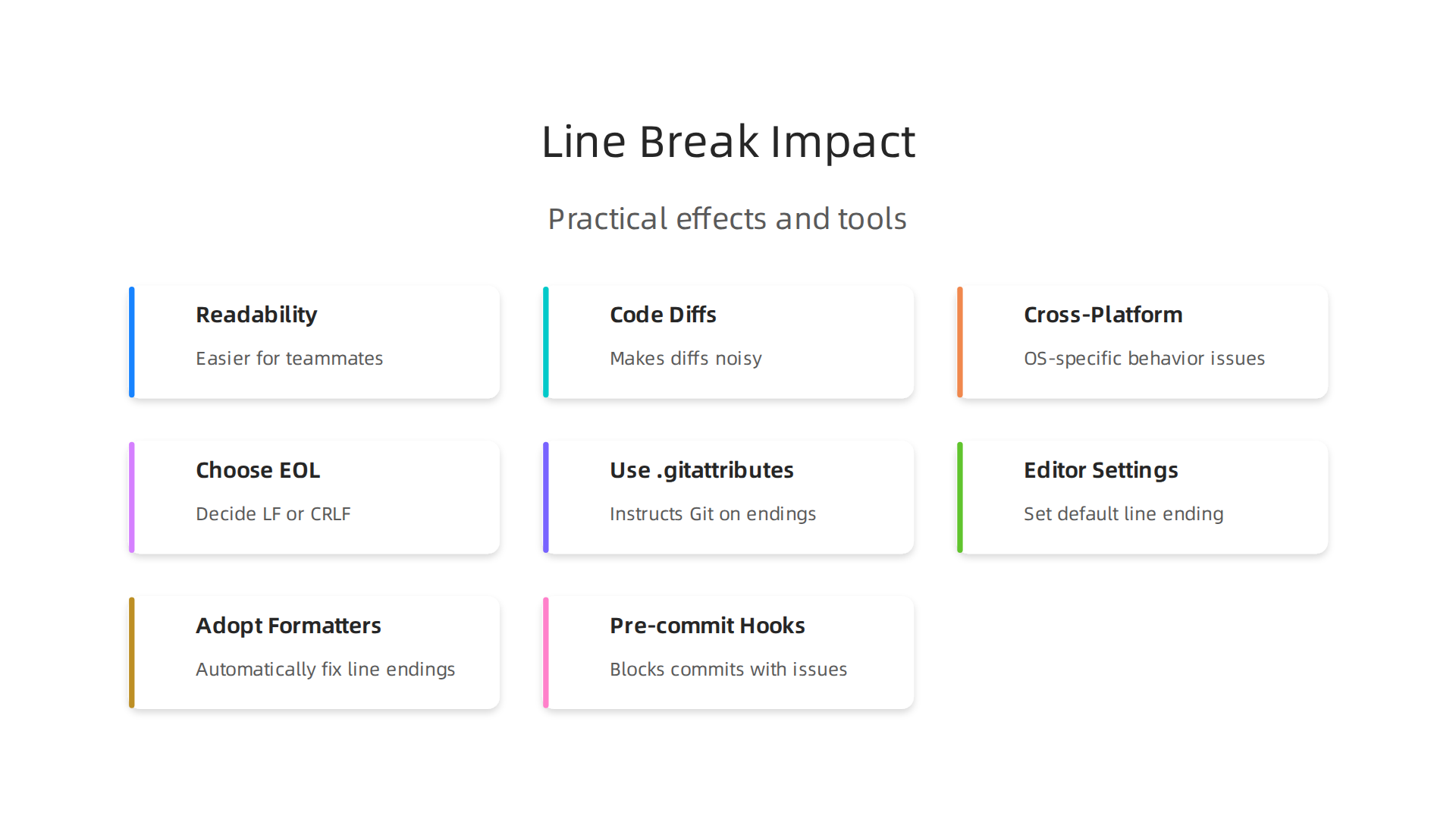
- Readability: Clear line breaks make your code much easier for you and your teammates to understand quickly. When your code is easy to read, it’s easier to find mistakes and make changes. It supports good programming paradigms by keeping things neat.
- Code Changes (Diffs): When you compare two versions of your code to see what’s changed, inconsistent line breaks can make it look like whole lines have been changed, even if only a small part is different. This makes it harder to track real changes and review code.
- Cross-Platform Behavior: As mentioned, different operating systems use different hidden characters for line breaks. If you’re working on a team where people use different computers, this can cause headaches. Your code dependent on these small details needs to be consistent across all environments.
Many people get confused about different newline types (like LF or CRLF), how their code editor settings affect them, and what automatic code formatters do by default. This guide will help clear up those confusions. We will give you clear, easy-to-follow advice on managing your line break code. You’ll learn how to set up your tools and projects so everyone on your team uses the same settings, making your code messaging clear and your workflows smooth.
If you’re interested in learning more about how to keep your coding skills sharp and stay updated on the latest tech, we recommend checking out The AI Newsletter Worth Reading for clear daily AI updates.

By the end of this guide, you will know exactly why and how to manage line breaks in your computer code, helping you avoid common problems and write better, more consistent software. To boost your core coding knowledge, you can also explore how to master programming language fundamentals.
Now, let’s dive into the core of line break code: what these special characters actually are and why they act differently on various computers.
A "newline" is basically a hidden signal in your text that tells the computer to start a new line Newline. Think of it like pressing the Enter key on your keyboard. But under the hood, this simple action is handled in a few different ways, depending on the operating system.
LF: The Unix Way
One common type of line break is called LF, which stands for "Line Feed." This is a single, special character. Unix-like systems, which include popular operating systems like Linux and macOS, use LF as their standard way to mark the end of a line. When you see \n in code, that usually means an LF character. It’s a simple, efficient way to tell the computer: "move down one line." This approach helps keep computer code clean and easy to manage for systems where many programming paradigms rely on this consistency.
CRLF: The Windows Way
Then there’s CRLF, which means "Carriage Return Line Feed." This one uses two special characters together. Windows and older MS-DOS systems use CRLF for their line breaks. This comes from old typewriters, where "carriage return" moved the printing head back to the start of the line, and "line feed" moved the paper up one line. So, \r\n in code is the CRLF way. This difference means that if a file created on Windows with CRLF line breaks is opened on a Unix system, the Unix system might see an extra, unwanted character at the end of each line, which can mess up how the code looks or even runs.
These different defaults are a big reason why line break code becomes important for teams working across different operating systems. Your code messaging needs to be clear, and that includes making sure these invisible characters are consistent.
Unicode Line Breaks
Beyond LF and CRLF, there’s also the bigger picture of Unicode. Unicode is a system that tries to give every character in every language its own special number. It also has rules for how text should break lines, especially when dealing with many different languages and writing styles. This is called the UTR #13: Unicode Newline Guidelines.
While LF and CRLF are about where one line of code ends and the next begins, the Unicode Line Breaking Algorithm is more about how text displays and wraps on screen. For example, it helps decide where a long sentence in a document can be split without breaking words incorrectly. For most common programming tasks and source files, understanding LF and CRLF is key. However, if your computer code deals with displaying a lot of varied text, or if you’re building software for a global audience, the Unicode rules help ensure that line breaks work correctly for everyone.
Understanding these basics of how different systems handle line endings is the first step to making your code dependent on these small details work smoothly everywhere. For deeper insights into current software trends, consider checking out the information available on AI Software Development in 2026.
Now that we know the basics of how different systems like Unix and Windows handle line endings, let’s see how popular programming languages and their tools deal with this. The way a language or its compiler sees these tiny pieces of line break code can really change how your computer code works.
Line Breaks in Popular Programming Languages
Different programming languages have their own ways of handling line breaks. This is important for ensuring your code works the same way, no matter where it runs.
-
Python: Python is quite flexible. When you write
\nin Python code, it usually means a Line Feed (LF) character. However, when Python writes text to a file, it often uses the line ending that matches the operating system where it’s running. For example, on Windows, it might automatically change\nto\r\nwhen saving a file. You can also tell Python to use specific line endings when opening files, like forcing it to use Unix-style LF endings even on Windows How to write Unix end of line characters in Windows?. -
JavaScript: In JavaScript, the
\ncharacter means a Line Feed. Most JavaScript environments, like web browsers and Node.js, treat\nas the standard way to break lines. But just like with Python, when JavaScript reads or writes files on a computer, the operating system’s default line breaks (like CRLF on Windows) can still come into play. This is especially true if you are dealing with text files that were created on different systems. -
Java: Java programs are designed to run on many different systems. Java uses
\ninside string literals, which means a Line Feed. But for more system-aware tasks, Java has a special way to find out what the current operating system uses as its line separator. This helps Java applications adjust their code messaging to fit the system, making them more compatible across different programming paradigms. -
C/C++: These languages are very close to how computers work. In C and C++, the
\nescape sequence stands for a new line. But what that actually means when your program runs depends on the compiler and the operating system. On Unix-like systems,\nbecomes a single LF. On Windows, a C/C++ compiler often changes\ninto the two characters, CRLF. This hidden change can cause issues if you move files between systems. For example, if you build code on a Windows machine and then try to run it on Linux, or vice versa, the different ways line endings are handled might lead to unexpected errors or formatting problems. Understanding when to use\nin C programming can prevent these headaches.
Compiler and Interpreter Challenges
The biggest problem with these different line break styles comes up when you’re building software for multiple operating systems.
- Preprocessor Issues: In languages like C/C++, the preprocessor handles some parts of your code before the main compiler even starts. If preprocessor directives (special commands that start with
#) have different line endings, they might not be understood correctly, leading to errors that are hard to track down. - String Literals: When you write text directly into your code, like
"Hello\nWorld", this is called a string literal. As mentioned, how\nin this string is turned into an actual line break can differ by system. This means text printed by your code dependent on these specifics might look different or break your layout on another system. - Multi-Platform Builds: Teams often work on code that needs to run on Windows, Linux, and macOS. If developers use different operating systems and don’t pay attention to line break consistency, the code might compile and run perfectly on one system but fail on another. Tools exist to convert line endings How to convert DOS/Windows newline (CRLF) to Unix newline (LF), but it’s better to set up a consistent system from the start.
In 2026, with many teams working across various operating systems, being mindful of these small line break code differences is key to smooth development. Ignoring them can cause headaches in your software development lifecycle. For a deeper dive into managing software projects efficiently, including handling such technical details, check out our guide on Mastering the Software Development Lifecycle Models, AI, and Best Practices for 2026.
The previous section talked about how different line break code settings can cause trouble for your projects. To stop these headaches, teams really need clear rules. Think of it like a sports team needing a playbook; everyone has to follow the same moves for the team to win. In coding, this playbook is called a style guide. It makes sure all your computer code looks the same, no matter who writes it or what system they use.
What a Style Guide Should Standardize
A good style guide helps everyone on a team write code that is easy to read and work with. Here are the key things to decide about line breaks:
- End-of-Line (EOL) Characters: This is the most important part. Will your team use Line Feed (LF), which is common on Unix and macOS systems, or Carriage Return and Line Feed (CRLF), which Windows uses? Most teams, especially those deploying software to Linux servers, choose LF for all their files. This simple choice prevents many tricky issues when moving files around or working with different operating systems.
- Maximum Line Length: How many characters can fit on one line of code? Setting a limit, like 80 or 120 characters, helps keep code readable without too much side-to-side scrolling. If a line gets too long, it needs to be broken up. For example, some teams keep a soft limit around 80 characters, with a hard limit around 90 characters before forcing a break in the code, according to some code style guidelines for line length.
- Code Wrapping Policies: When a line of
computer codeneeds to be broken because it’s too long, how should it be done? This includes rules for:- Where to split a long line (e.g., before an operator, after a comma).
- How much to indent the new line.
- When to add an extra blank line for clarity. For instance, the Google Java Style Guide provides clear rules for line breaks around braces and statements. Consistent wrapping improves how readable your
code messagingappears.
These rules matter because they keep your project’s code clean and free from confusing differences. When everyone follows the same style, it’s easier to understand each other’s work and find mistakes faster.
A Checklist for Your Team’s Style Guide
To set up consistent line break rules for your team in 2026, consider this checklist:
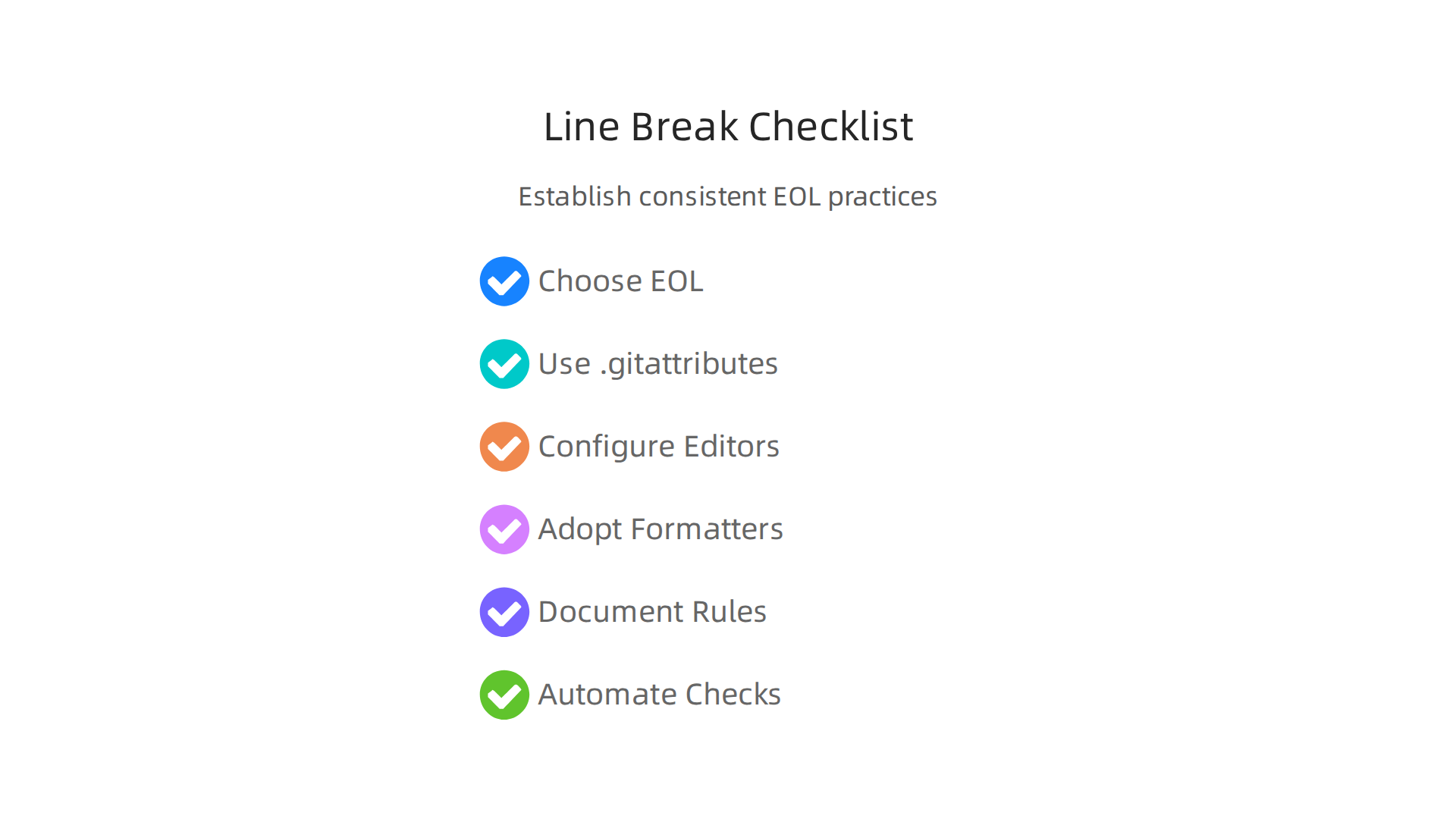
- Choose a Single EOL Standard: Decide if your project will use LF or CRLF for all files. This should be a clear, team-wide agreement. Many teams go with LF for cross-platform compatibility.
- Use
.gitattributes: This special file in your code’s main folder tells Git (a popular tool for tracking code changes) how to handle line endings automatically. You can set it to ensure all text files get the correct line endings, like enforcing Unix style line endings for everything. - Configure Your Code Editors: Most modern code editors allow you to set the default line ending. For example, in Visual Studio Code, you can easily get consistent line breaks by changing a setting. Similarly, IntelliJ IDEA offers options for configuring line separators to match your team’s choice. Using an
.editorconfigfile can also help keep settings the same across different editors. - Adopt Code Formatters: Tools like Prettier for JavaScript/web, Black for Python, and Clang-Format for C/C++ can automatically fix line endings and apply other formatting rules. For example, Prettier has an
endOfLineoption that can be set tolfto enforce Unix-style line endings consistently, as described in their documentation for options. This saves developers time and makes sure the rules are always followed. - Document Your Decisions: Write down all your
line break coderules and other style choices in an accessible document. This helps new team members get up to speed quickly and serves as a reference for everyone. - Automate Code Checks (Linting): Use tools that automatically scan your code for style issues, including incorrect line breaks. For example, ESLint has rules like
linebreak-stylethat can warn or fix issues related to line endings. This catches problems early, before they cause bigger issues.
By following these steps, your team can prevent many common line break code problems and keep your computer code clean and consistent. This makes for happier developers and more reliable software. Knowing the best ways to work together, like with consistent coding styles, is a big part of successful software development lifecycle models.
Want to stay sharp on the latest tech changes, including new ways AI is shaping development in 2026? The AI Newsletter Worth Reading offers clear daily AI updates to help you stay ahead.
4) Line breaks and version control: diffs, merges, and CI signal noise
Even after setting up clear rules for line break code in your team’s style guide, you might still run into problems if everyone’s tools aren’t set up the same way. One big area where this causes headaches is with version control systems like Git. When different team members save files with different end-of-line (EOL) characters (some with LF, some with CRLF), it makes changes look much bigger than they are.

Imagine you only changed one word in a file. If your computer uses CRLF and your teammate’s uses LF, Git sees every single line as changed because the EOL marker is different. This creates "noisy diffs," which means it’s hard to tell what real changes were made among all the EOL differences. These false changes can also lead to fake "merge conflicts," making it tougher to combine everyone’s work smoothly. Git helps manage this, but it needs to be set up right to keep your computer code tidy and free from these issues, as explained in guides about configuring Git to handle line endings.
To prevent these problems, a key tool is the .gitattributes file. This special file lives in the main folder of your project and tells Git how to handle line endings for different types of files. For example, you can tell Git to always store text files using LF line endings in the repository, even if someone checks them out on a Windows machine that uses CRLF. This "normalizes" the line endings, making sure that what’s stored in Git is always consistent. Many projects use * text=auto to make Git automatically detect and normalize text file line endings, then explicitly set eol=lf for certain files or all text files to force LF in the repository, a useful strategy for normalizing line endings in Git.
A good setup in your .gitattributes file might look like this:
# Normalize all text files to LF in the repository
* text=auto eol=lf
# Treat specific files as binary to prevent EOL changes
*.jpg binary
*.png binary
This tells Git to make sure all your regular code files use LF when they are committed. After you add a .gitattributes file, it’s a good idea to "renormalize" existing files in your repository to apply these new rules to all code that’s already there. You can do this with a special Git command, as shown when you need to normalise line endings in a git repository.
Inconsistent line break code can also cause trouble for automated checks. If your project uses Continuous Integration (CI) tools, these systems often run tests or build your software. If a CI server expects LF line endings but a file was accidentally committed with CRLF, it might fail the build or report errors, even if the actual code dependent logic is perfect. This adds "signal noise" to your CI process, making it harder to spot real problems. By enforcing consistent line endings with .gitattributes and editor settings, you ensure that your automated checks run smoothly and only highlight actual coding issues. Keeping up with modern practices, including how to handle code consistency and automation, is a big part of AI software development in 2026.
5) AI-assisted formatting: how code formatters and AI tools handle line breaks
As teams work to keep their computer code neat, automated tools like code formatters and AI assistants have become very common in 2026. These tools help write and organize code, but how they decide where to put line break code can sometimes be different from what your team expects.
Code formatters like Prettier, Black, and Clang-Format are designed to make your computer code look the same everywhere. Prettier, for example, has an endOfLine option that helps keep line endings consistent across your project, often defaulting to lf (Linux-style line endings) to prevent issues. You can learn more about its settings in the Prettier options documentation. Similarly, Clang-Format, which is used for C++ and other languages, lets you set the line ending style, like LF or CRLF, in its configuration file to match your project’s needs, as detailed in the Clang-Format Style Options. Black, a popular Python formatter, ignores how code was previously laid out and applies its own rules for how lines should break, often putting one complete thought or simple statement on each line, as outlined in The Black code style.
Now, with AI coding assistants like GitHub Copilot and Cursor, things get a bit more interesting.

These tools watch you code and suggest whole lines or blocks of computer code. They learn from the programming paradigms in your existing files and often try to match the style they see. However, if not told otherwise, an AI might make assumptions about line breaks that don’t fit your team’s style guide or your .gitattributes setup. Sometimes, an AI might even suggest code that is already on the next line, just formatted differently, which can be confusing. To get the most out of these tools, it’s important to understand how to make them follow your rules. For more details on how these advanced tools work, check out insights on how AI assistants make precise edits to your files.
To make sure your code formatters and AI tools work well with your team’s rules:
- Configure Formatters: Most formatters use a special file (like
.prettierrc,pyproject.tomlfor Black, or.clang-format) where you can set specific rules for line length, indentation, and importantly, line endings. Always set these to match your team’s agreed-upon style. - Integrate with Version Control: Make sure your formatter settings match what you’ve set up in your
.gitattributesfile. This way, both Git and your formatter are on the same page about howline break codeshould be handled. - Train AI Tools: Many AI coding assistants can be set up within your code editor (like VS Code) to respect your project’s formatting files. This means the AI will use your team’s style guide when suggesting new
computer code. Learning to configure these tools is key to making them helpful without causingcode dependentstyle issues. To learn more about getting the most from these helpers, read about AI coding assistants 2026. - Review AI Suggestions: Even with good settings, always take a quick look at code suggested by AI tools. Just like humans, AI can sometimes make mistakes or not fully understand the context, especially with subtle things like
code messagingand specific line break needs.
By properly setting up these smart tools, you can ensure they help you write great code that is also clean and consistent, saving your team from many headaches later on. If you want to keep up with the latest developments in AI and technology that affect coding, there’s a valuable resource available.
Get clear daily AI updates from The AI Newsletter Worth Reading.
Making sure all your computer code looks the same across a team is super important. Even when you use automated tools, you need ways to make sure everyone follows the same rules for things like line break code. This is where editor settings, linters, and pre-commit hooks come in handy. They help keep your code clean and prevent common mistakes.
Editor Settings for Consistent Code
Your code editor, like VS Code or Sublime Text, can be set up to help with line break code rules. Many teams use a special file called .editorconfig. This file lives in your project and tells different editors how to handle things like:
- Line endings: Making sure everyone uses "LF" (Linux style) or "CRLF" (Windows style) for
line break code. - Indentation: How many spaces or tabs to use for each line.
- Trailing whitespace: Getting rid of extra spaces at the end of lines.
When you set up an .editorconfig file, your editor will read it and try to follow those rules automatically. This means if one team member opens the project on a Windows computer and another on a Mac, their editors will still apply the same formatting rules. It’s a simple step that makes a big difference in keeping your computer code consistent. If you are looking to try out the newest features, consider checking out VSCode Insiders lets you try the newest features and AI tools before stable.
Linters: Your Code’s Rule Checker
Linters are tools that look at your computer code and tell you if it breaks any rules. They don’t usually fix the code for you, but they point out problems. For line break code, a linter might warn you if a file uses the wrong line endings or if a line is too long.
Think of a linter as a spell checker for your code style. It helps keep things like code messaging clear and prevents small errors from becoming big problems. Setting up a linter is a great way to catch issues early, before they get saved into the main project.
Pre-commit Hooks for Automated Fixes
Pre-commit hooks are like gatekeepers for your code. They are small scripts that run automatically before you save your changes to the project’s main history (using Git). This is a powerful way to enforce line break code rules and other formatting standards.
Here’s how they work:
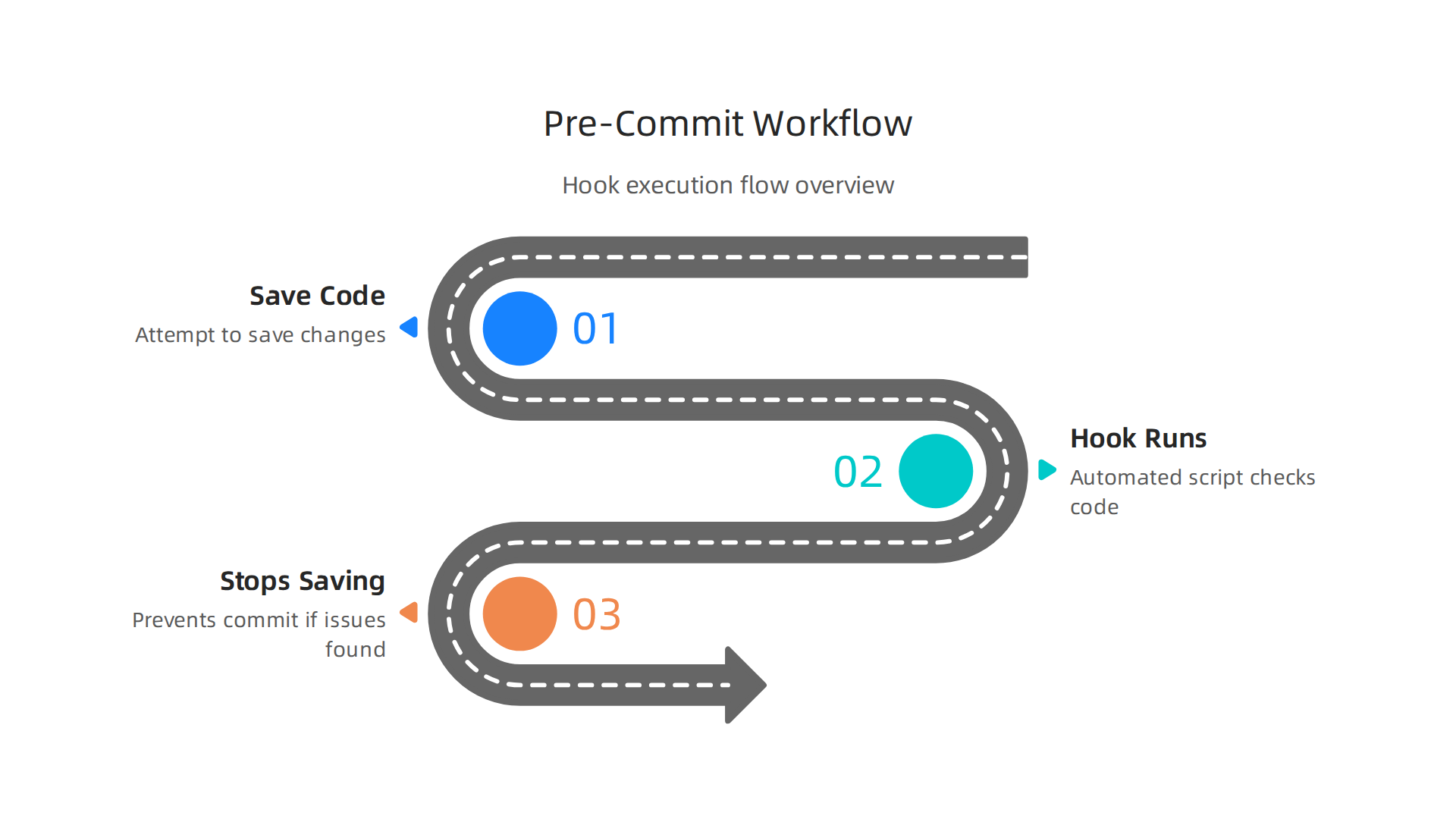
- You try to save your code.
- The pre-commit hook runs. It might use a code formatter (like Prettier or Black) to automatically fix any style issues, including line endings.
- If there are problems it can’t fix, or if it finds serious issues, it will stop you from saving. This ensures that only clean, properly formatted
computer codemakes it into your project.
To set this up, many teams use a .gitattributes file. This special file tells Git how to handle different file types, including their line endings. For example, you can tell Git to always store text files with "LF" line endings, no matter what operating system someone is using. This is a robust way to prevent code dependent line ending issues. You can find more details on how to use this feature in the official Git – gitattributes Documentation.
After you add a .gitattributes file, you might need to run a special command, git add --renormalize ., to apply the new line ending rules to all existing files in your project. This makes sure everything is consistent from the start.
Rolling Out Automated Formatting: Tips for Your Team

Introducing new formatting tools can sometimes cause a few bumps. Here are some tips to make it smooth:
- Start Small: Don’t try to fix every single file at once. Start with new files or small parts of the code.
- Communicate Clearly: Explain why these changes are important. Talk about how consistent
programming paradigmsandline break codewill make everyone’s work easier. - Use Existing Tools: Integrate these formatting tools into your team’s current workflow. For instance, make sure they run inside your Continuous Integration (CI) system to check code changes automatically.
- One Big Change: For existing projects, it can be best to have one large "cleanup" commit that applies all new formatting rules to the whole codebase. This can be a bit scary, but it gets all the changes out of the way at once, so future changes are small.
By setting up these tools thoughtfully, your team can spend less time worrying about line break code and more time building awesome things. It creates a clearer, more organized codebase for everyone. If you’re looking to brush up on core programming concepts, Master Programming Language Fundamentals in 2026 offers valuable insights.
Summary
This guide explains why invisible line break characters matter for code readability, cross-platform compatibility, diffs, and CI. It covers the main newline types (LF and CRLF), how Unicode line breaks differ, and how popular languages and compilers treat \n and EOL conversion. You’ll learn practical team-level policies to avoid problems: choosing a single EOL, setting maximum line length and wrapping rules, and documenting decisions. The article shows how to enforce consistency with .gitattributes, .editorconfig, editor settings, formatters like Prettier/Black/Clang-Format, linters, and pre-commit hooks. It also explains how AI coding assistants and formatters interact with your settings and how to make them respect your style. After reading, you’ll be able to set up a workflow that prevents noisy diffs, merge conflicts, and CI noise caused by inconsistent line breaks.