
VSCode Insiders Lets You Try the Newest Features and AI Tools Before Stable
· 22 min read

Introduction
Does it ever feel like your coding tools change faster than you can keep up? In 2026, that feeling is more real than ever. Every week there’s a new framework update, a smarter AI assistant, or a fresh workflow trick that promises to double your productivity. Keeping your development environment current without breaking your existing setup is a real challenge.
That’s where VSCode Insiders comes in. It’s a special preview version of Visual Studio Code that lets you test the newest features before they hit the stable release. Think of it as your personal window into what’s next for one of the most popular code editors in the world.

Whether you want to try the latest Copilot improvements or experiment with performance boosts, VSCode Insiders gives you early access without forcing you to give up your stable setup.
The problem is, finding clear, unbiased information about these new tools can be hard. Between hype-filled announcements and scattered forum posts, it’s tough to separate what actually helps your workflow from what’s just noise. This guide aims to change that. It gives you an authoritative overview of VSCode Insiders and how it fits into the modern developer ecosystem.
We’ll walk through what VSCode Insiders actually is, why you should consider using it, and how to make it a natural part of your daily work. You’ll learn practical ways to boost your productivity as a developer in 2026. Plus, we’ll touch on related tools like create next app for scaffolding projects and how to use code list commands efficiently. By the end, you’ll know exactly how to leverage VSCode Insiders to stay ahead of the curve.
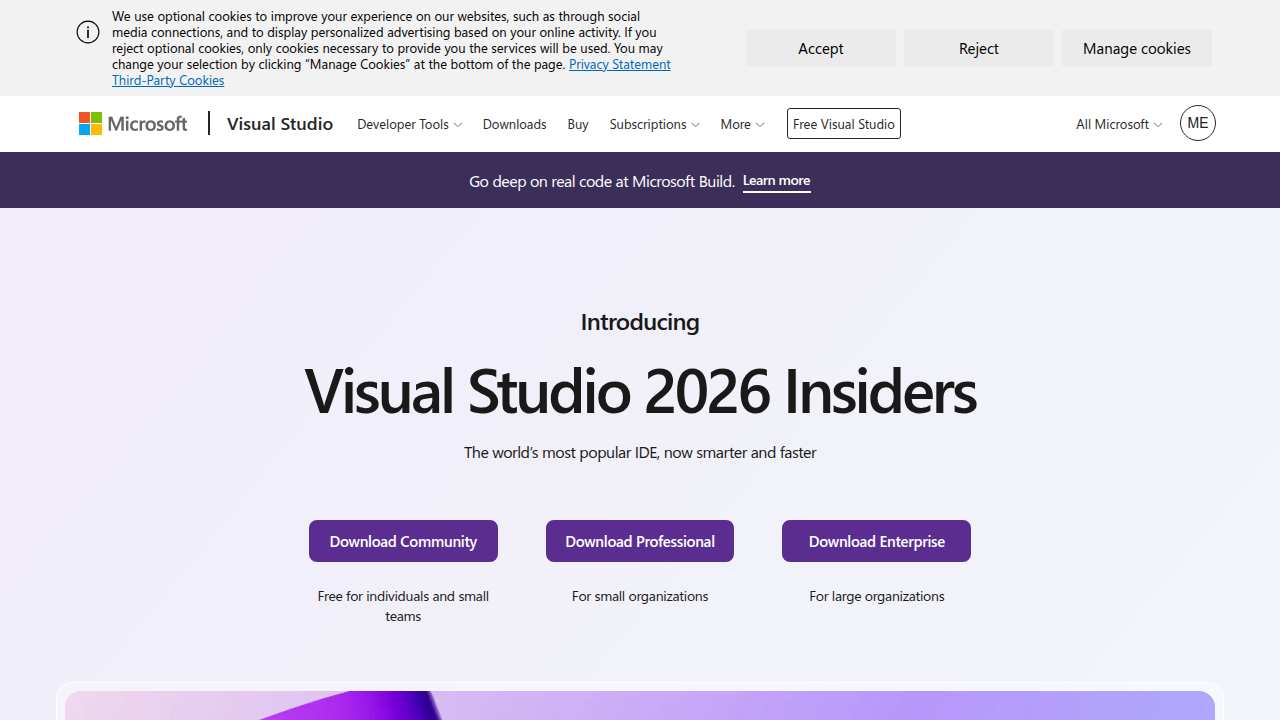
For the official scoop, check out the Visual Studio 2026 Insiders official page to see Microsoft’s latest vision for the IDE.
And if you’re interested in how AI coding assistants are reshaping development, our article on AI Coding Assistants 2026 offers a deeper look.
But first, let’s start with the basics: what exactly is VSCode Insiders and why should you care? Let’s dive in.
Want even more insights on the latest AI trends and how they affect your coding life? Subscribe to The Deep View Newsletter for clear daily updates that help you stay informed without the clutter.
What Is VSCode Insiders?
VSCode Insiders is the nightly build of Visual Studio Code. Every day, Microsoft compiles the latest code changes, bug fixes, and experimental features into a separate installation. Think of it as the "developer preview" track for the world’s most popular code editor.
You install VSCode Insiders alongside your regular VS Code. They live side by side without interfering with each other. That means you can keep your stable editor for daily work and open Insiders whenever you want to test something new. No risk, no downtime.
The main goal of VSCode Insiders is simple: give developers early access to features before they land in the stable release. This lets you explore upcoming capabilities, try out workflow changes, and send feedback directly to the team. Microsoft actively uses Insiders builds internally, and the broader developer community has adopted it to stay on the bleeding edge.
For a closer look at the kind of innovations you can expect, check out the Visual Studio Code 1.116 release.
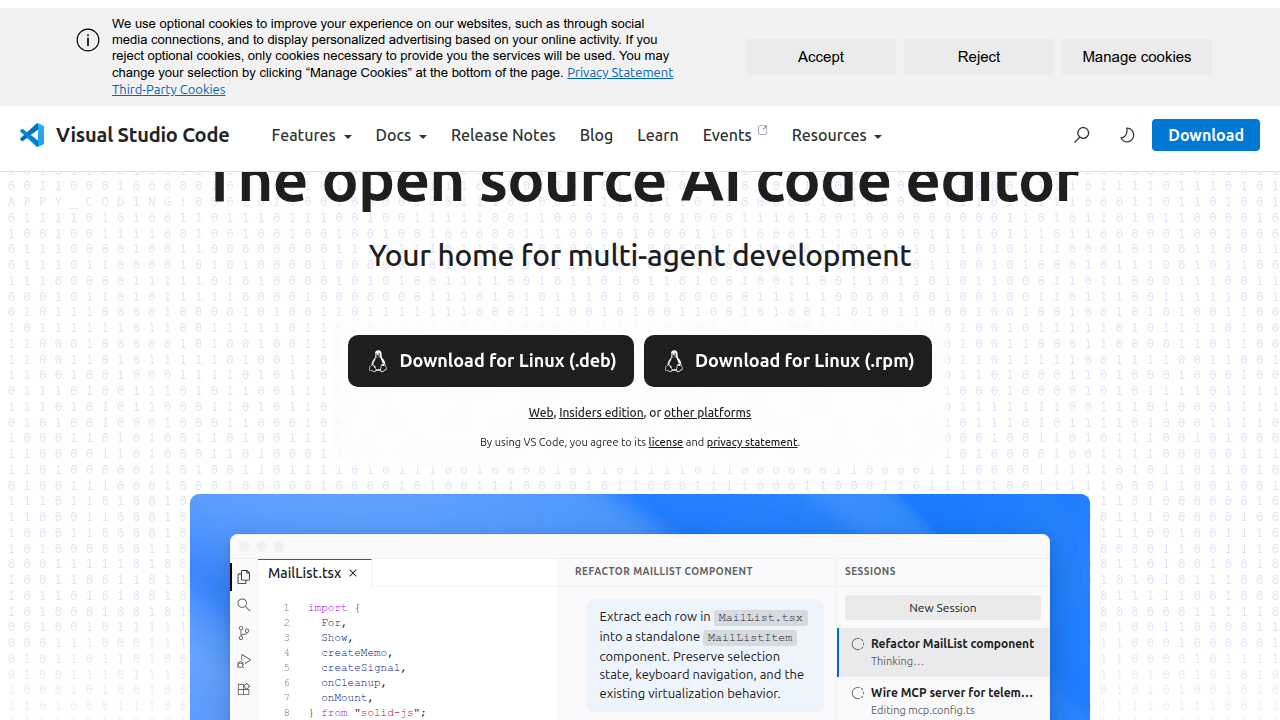
That update introduced Agent Debug Logs, built-in GitHub Copilot, and terminal agent tools — all of which first appeared in Insiders builds. The pace of change is fast, and Insiders keeps you ahead of it.
What does this mean for your daily coding? If you are someone who uses commands like create next app to scaffold a new project often, you will see the latest CLI integrations first. If you rely on code list to manage extensions, Insiders often adds new flags and filters earlier. And if you are building a fetch app to pull data from an API, you will benefit from the latest debugging improvements. All of these small updates add up over time.
VSCode Insiders also connects deeply with the AI assistant ecosystem. You can try the newest Copilot features, custom agents, and model options before they become standard. Want to understand how these AI tools can reshape your entire workflow? Our article on Anthropic AI for Developers explains how Claude and other models integrate with editors like VS Code.
In short, VSCode Insiders is your backstage pass to the future of the editor. It is free, it is low risk, and it gives you a voice in how those features evolve. The only real question is: why not try it?
Evolution of VSCode Insiders: From Preview to Production
So why should you try VSCode Insiders today? To understand that, it helps to look at how this build has grown over time. What started as a simple nightly preview has turned into something much bigger.

In its early days, VSCode Insiders existed mainly to test UI tweaks and minor bug fixes. Developers used it to peek at what the next stable release would look like. It was useful, but not exciting.
Then something shifted. Microsoft began using Insiders to ship features that would reshape how people write code. The first AI integrations arrived here. Copilot experiments, new debug tools, and smarter autocomplete all showed up in Insiders first. Suddenly, this preview build became the place where the future of coding actually happened.
By 2026, the evolution is clear. VSCode Insiders is no longer just a testing ground. It is a bridge between experimental ideas and production-ready tools. The features you see in Insiders today often become the standard tomorrow. This is exactly the kind of AI Driven IDE Evolution with Side by Side Install that the broader Microsoft ecosystem has embraced, and VS Code follows the same pattern.
This history matters for one simple reason: it helps you decide when to jump in. If you are working on a project like a create next app command or a fetch app integration, you want to know which features are stable and which are still experimental. Understanding the Insiders track gives you that confidence.
The build now ships new AI agents, language support updates, and workflow improvements on a daily cycle. You can test them, give feedback, and watch them evolve. It is a far cry from the old days of waiting months for a release.
If you are curious about how these AI capabilities fit into the bigger picture of modern development, our guide on how to study AI for software development in 2026 breaks down exactly what you need to know.
The evolution of VSCode Insiders tells a simple story: today’s preview is tomorrow’s standard. The best time to start exploring is now.
And if you want to stay on top of all these changes without spending hours digging through release notes, consider subscribing to The AI Newsletter Worth Reading. It delivers clear daily updates on the tools and trends that matter most to developers like you.
Key Features Introduced in VSCode Insiders
When you install VSCode Insiders, you get a front row seat to the newest tools. Some of these features later become part of the stable release.
Others stay experimental. Either way, they shape how you build software every day.
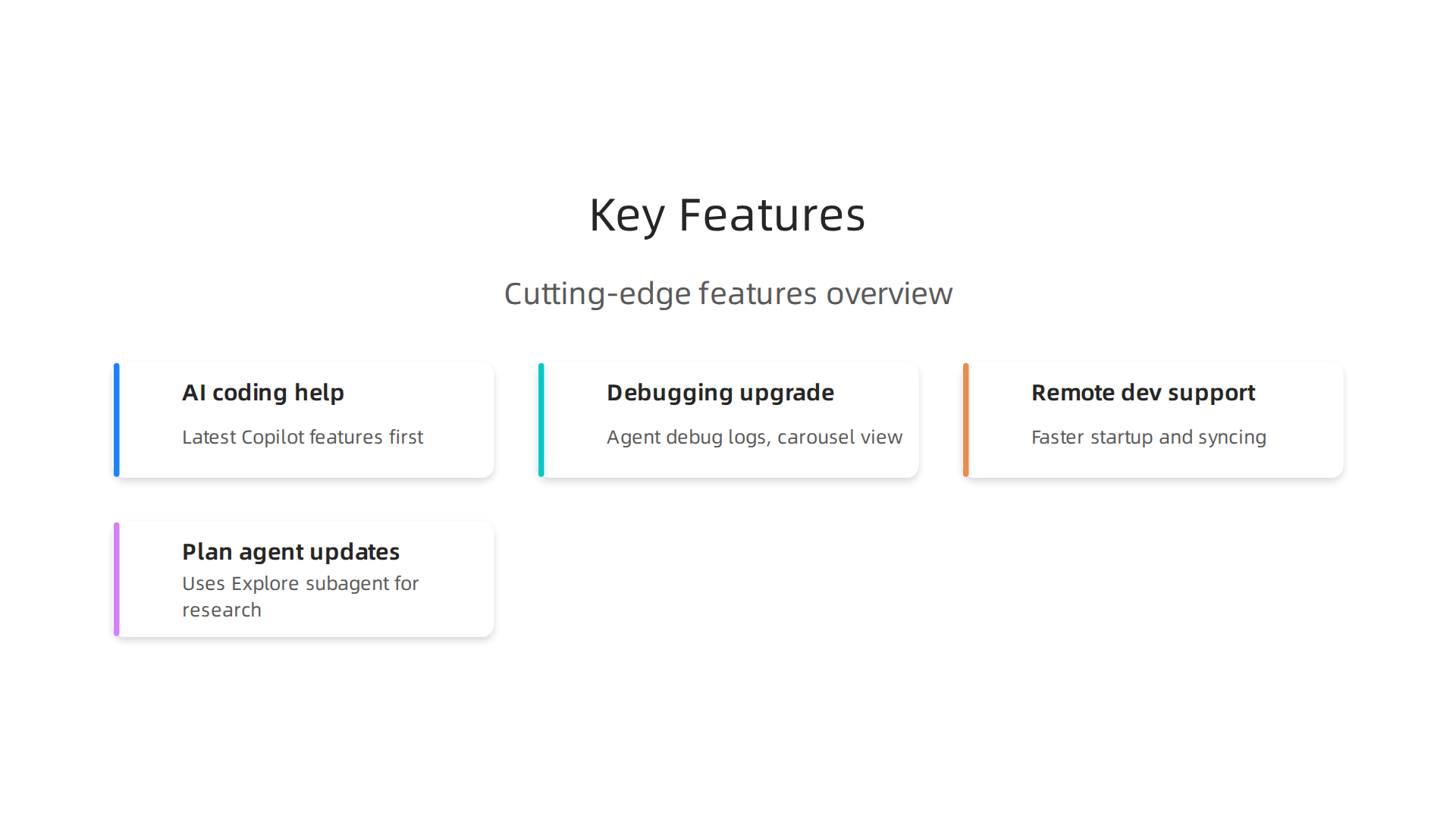
AI powered coding help. This is the biggest reason developers switch to Insiders. The latest Copilot features often appear here first. In the Visual Studio Code 1.116 update, for example, Copilot became built in. You no longer need to install a separate extension to start using chat, inline suggestions, or agents. The update also added Agent Debug Logs. These logs show you exactly what your AI agent did during a chat session. You can review past sessions too, which helps when something goes wrong. Another improvement is the terminal agent tools. You can now let your AI agent interact directly with any terminal session. This makes workflows like running tests or checking logs much smoother.
The February 2026 release of VS Code brought even more agent upgrades. The Plan agent now uses a dedicated Explore subagent to research your codebase before making changes. The Explore agent only reads files and searches. It works fast because it uses lighter AI models. The main Plan agent then uses the full model to create smart plans. This split makes planning quicker and more accurate.
Debugging gets a serious upgrade. The Agent Debug Logs we just mentioned are a big step forward. Instead of guessing what your AI assistant did, you can read a clear timeline of every action it took. This is hugely helpful when you are building a create next app command or working on a fetch app integration. You can see where the AI made choices and fix mistakes faster. The same update also made it easier to review and approve multiple tool calls at once with a new carousel view. No more clicking through one by one.
Better remote development and container support. VSCode Insiders refines how you work with Dev Containers and remote machines. These improvements might seem small at first, but they add up. Faster startup times, smoother file syncing, and better extension handling make remote work feel almost local. If you build projects that run on cloud servers or inside containers, Insiders gives you the earliest access to these refinements.
The features you find in Insiders today help you write better code tomorrow. If you want to see how these AI tools fit into a larger learning path, check out our guide on AI coding assistants in 2026. It explains how to get the most out of tools like Copilot without losing control of your code.
VSCode Insiders in the Developer Tool Ecosystem
Now that we have seen what Insiders brings to your editor, let us talk about where it fits in the bigger picture. VSCode Insiders does not work alone. It connects deeply with your version control system, your CI/CD pipelines, and your cloud services.

This integration is what makes Insiders more than just a preview channel. It is a real tool you can use every day alongside everything else in your stack.
The extension marketplace is a huge part of this. Many extension creators build their tools targeting the newest APIs that appear first in Insiders. So when you run Insiders, you get early access to new themes, debuggers, language servers, and even AI extensions. That early access lets you test and give feedback before these features hit stable. It also means you can help shape how the ecosystem evolves.
According to a roundup of must-have software development tools for 2026, Visual Studio Code remains a central hub for many teams. Its ability to plug into any workflow makes it a constant in the developer toolchain. And Insiders is the version that keeps up with the fastest changes in that chain.
Insiders also acts as a testbed for big industry trends. AI coding assistants got their first real workout in Insiders. Containerized development and remote workflows also got their first polish there. If you want to be part of shaping where the ecosystem goes next, Insiders is your way in. It is where new ideas become stable features.
Keeping up with this fast-moving world is tough. That is why many developers turn to a daily briefing that cuts through the noise. If you want to stay ahead without spending hours reading, check out the AI newsletter worth reading for clear daily updates on AI and developer tools. It helps you spot the next big shift before it hits stable.
Best Practices for Using VSCode Insiders Without Disrupting Workflow
But even with the best updates, you need a solid strategy to test Insiders without breaking your work. Here are the best practices.
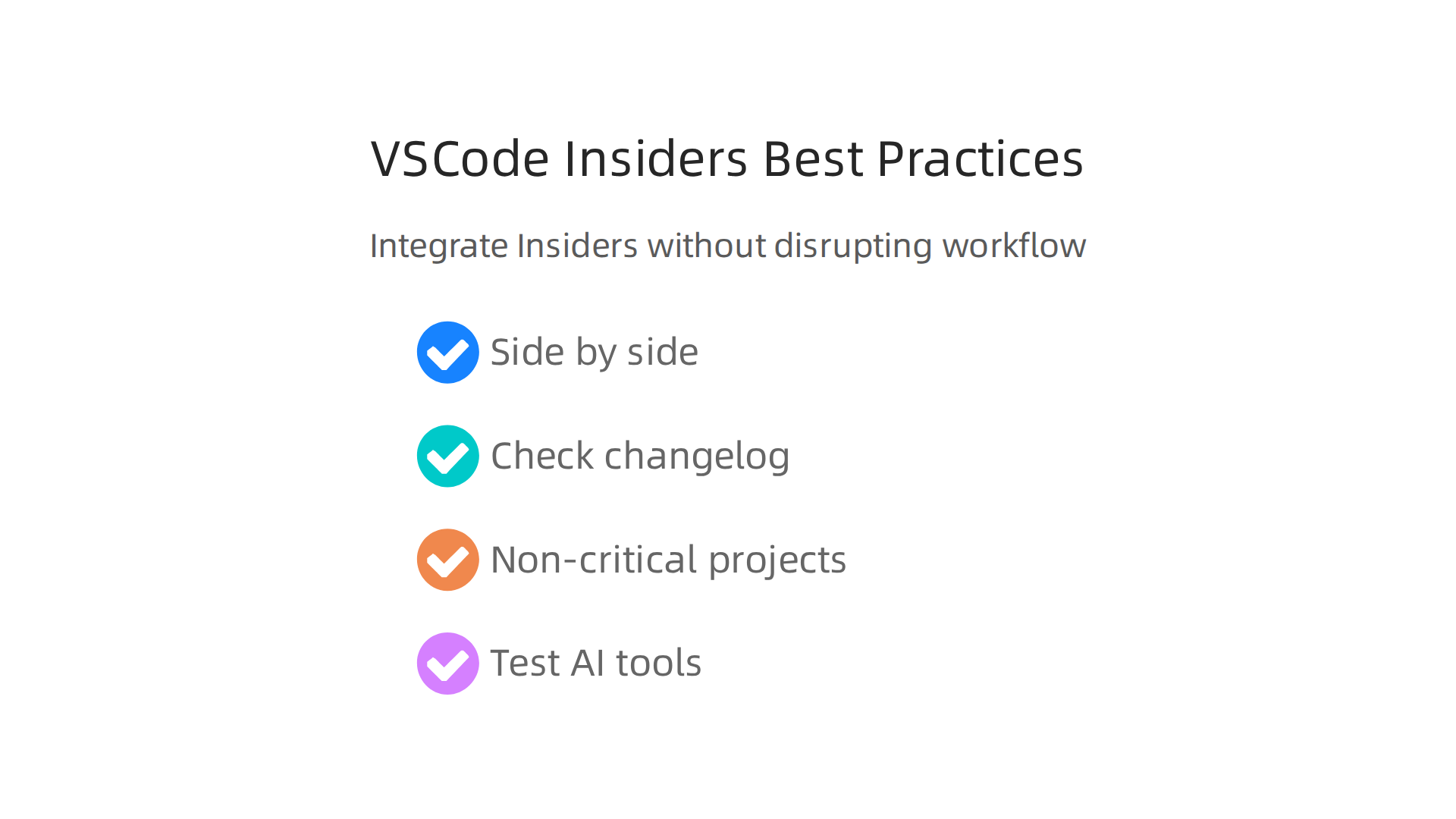
Run both versions side by side. The safest way to try VSCode Insiders is to keep it installed alongside the stable release. The side-by-side model means you can use Stable for all your real tasks and switch to Insiders when you want to explore new features. If a nightly build introduces a crash or a bug, your main editor stays untouched. This approach is widely recommended for anyone trying preview builds, and the same idea applies to the related Visual Studio Insiders program which also supports a side-by-side Insiders builds setup.
Check the changelog before you update. Insiders updates almost every night. That is exciting, but it can also bring unexpected changes. Before you start coding, take a minute to read the latest release notes. For example, the VSCode February 2026 changelog lists new features, bug fixes, and any known issues. This habit helps you avoid surprises like a missing extension or a changed shortcut. You will know exactly what to expect.
Use Insiders on non-critical projects first. Stick to test repos, personal side projects, or a secondary environment when running the Insiders build. That way, if a new AI extension or language server breaks something, your main production code stays safe. A simple rule: never open your company’s main repository in Insiders until you have tested everything in a sandbox. This is especially important if you rely on stable extensions that might not yet work with the newest APIs. Many teams set up a two-week pilot on non-critical workstations before rolling out new Insiders features across the team. You can do the same.
Test new AI tools in Insiders. Early access to new features is one of the biggest advantages of Insiders. If you are curious about the latest machine learning extensions or generative AI helpers, try them in Insiders first. For a deeper look at how these tools work, you can read our guide to AI coding tools like Claude. Testing in a safe space lets you give useful feedback to extension creators without risking your daily workflow.
By following these simple practices, you get the best of both worlds: you stay on the cutting edge without ever losing your balance.
VSCode Insiders vs Stable vs Other Preview Builds
So you have heard about VSCode Insiders, but how does it really stack up against the stable release? And what about preview programs from other editors?
Let’s break it down.
Update frequency is the biggest difference. The stable release of VS Code gets a major update once a month. You can see exactly what changed in each monthly release notes, like the February 2026 release notes. VSCode Insiders, on the other hand, gets a new build every single day. That means you see bug fixes and feature additions within hours instead of waiting weeks. The trade off is clear: speed for stability. As one developer put it in a community discussion, Insiders is basically VS Code plus extra features and more bugs.
Stability vs cutting-edge features. The stable version is tested and reliable. You can depend on it for production work. Insiders is more like a testing ground. The official Microsoft page describes it plainly: Insiders has the most recent code pushes and may lead to the occasional broken build. This is the real trade off. You get early access to the latest AI agent features and new extensions, but you also accept that things might break. If you want to stay on the bleeding edge and help shape the future of the editor, Insiders is your choice. If you need to ship code without surprises, stick with stable.
Other editors have similar programs. VSCode is not the only one with a preview channel. JetBrains offers Early Access Program (EAP) builds for IntelliJ IDEA, PyCharm, and other IDEs. These also give you early features but update less frequently than Insiders. Microsoft’s full Visual Studio IDE has its own Insiders program as well, which installs side-by-side with the stable version just like VSCode Insiders does. The pattern is the same across the industry: test new features in a safe space before they reach the general public.
Performance differences you should know. Sometimes Insiders actually runs faster than stable. The daily builds include performance optimizations that have not yet made it into the monthly release. But the opposite can also be true. A nightly build might introduce a memory leak or a slowdown. That is why the side-by-side install is so important. You can test the performance of each new build on your own machine and decide for yourself.
The bottom line is simple. Use stable for work you cannot afford to lose. Use VSCode Insiders for exploring what is coming next. And if you want to stay ahead of the curve on AI tools and workflows, keep both installed and use them wisely. For daily curated insights into AI and software trends that help you make smarter decisions, check out The AI Newsletter Worth Reading.
The Future of VSCode Insiders and Developer Tools in 2026
Looking ahead, VSCode Insiders is not just about getting features early. It is about shaping the future of developer tools in 2026. The tool ecosystem is moving fast, and Insiders is the place where these changes first appear.
AI-assisted coding is becoming deeply integrated into editors. Simple autocomplete is no longer enough. We are moving toward agentic engineering, where AI agents can understand entire repositories, make changes across multiple files, and even run tests on their own. By early 2026, more than half of all code committed on GitHub was generated or substantially assisted by AI, according to the complete guide to AI coding in 2026. VSCode Insiders will be the first channel where these agentic features land. Microsoft tests new AI workflows in the nightly builds before rolling them out to stable. If you want to experience the next generation of coding assistants, Insiders is your gateway.
Real-time collaboration and cloud-based development are also becoming standard. Teams no longer work in isolation on local machines. Editors are turning into platforms that let multiple developers edit the same file live, spin up cloud environments instantly, and test code without local setup. VSCode Insiders lets you test these new workflows before they hit the stable release. This is especially useful if you want to see how new collaborative features behave under real conditions.
For developers looking to stay ahead, understanding how AI fits into your daily workflow is critical. That is why resources like this guide on how to study AI for software development in 2026 can help you build the right skills and keep up with these changes.
VSCode Insiders will continue to be the testing ground for innovations in AI, collaboration, and cloud development. If you want a front-row seat to where developer tools are heading, install Insiders today and start experimenting. The future of coding is already shipping one nightly build at a time.
Installing and Configuring VSCode Insiders
Getting started with VSCode Insiders is simple.

Head to the official Microsoft page and download the nightly build for your operating system.
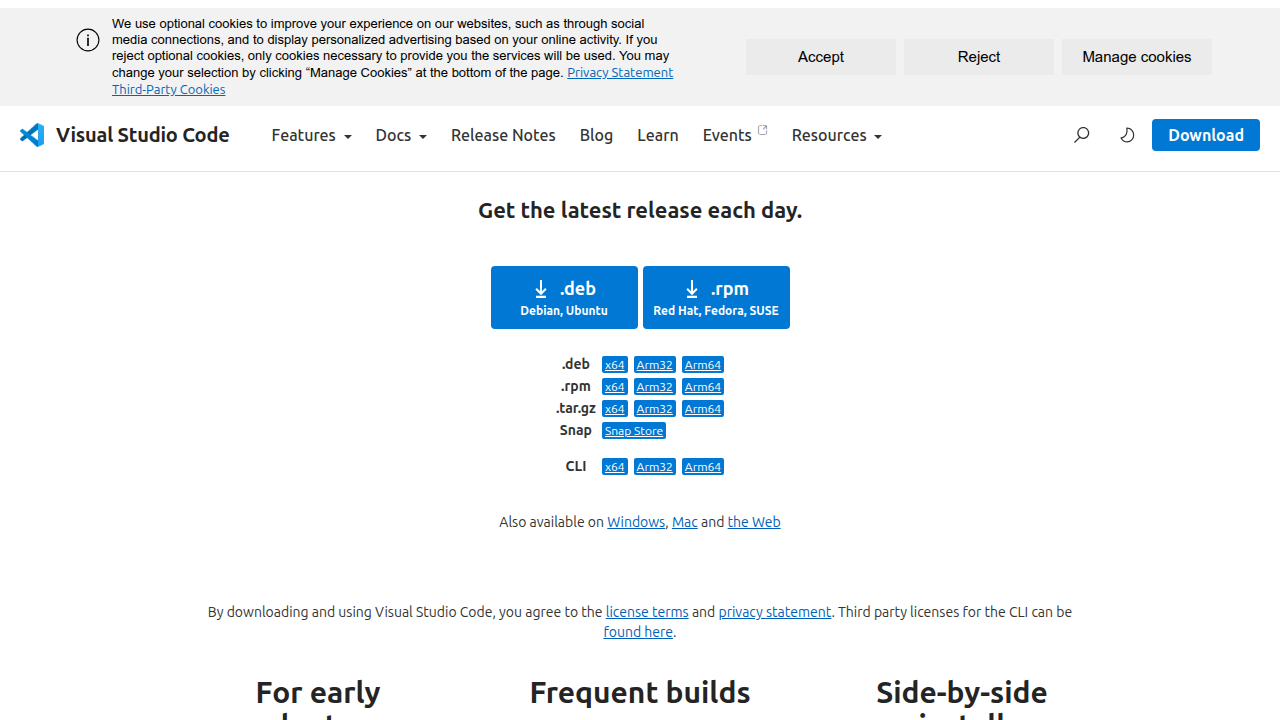
You can also install it using package managers like Homebrew on macOS, Winget on Windows, or Snap on Linux. The process takes just a few minutes.
One of the best things about VSCode Insiders is that it installs side by side with the stable version. That means you can keep your main editor running for everyday work while you test out new features in Insiders without any risk. The official VSCode Insiders download page confirms this safe setup.
Once installed, you will want to sync your settings. VSCode has a built in Settings Sync feature that works across both Stable and Insiders. Turn it on, and your themes, keybindings, snippets, and user settings transfer automatically. No need to reconfigure everything from scratch. This makes switching between the two versions feel seamless.
Extensions also carry over for the most part. Many popular extensions work fine on Insiders right away. However, some older extensions may need updates to stay compatible with the latest nightly builds. You can check for updates in the Extensions panel. If you are testing AI agent features or other cutting edge tools, you will want to make sure your extensions are up to date. For more on how AI is changing your editor, check out this guide on AI coding assistants for 2026.
After you get everything configured, you can start experimenting with the newest agent workflows, improved IntelliSense, and live collaboration features. The Insiders build updates daily, so you always have the freshest code.
If you want to stay ahead of the curve on AI tools and developer trends, consider subscribing to a daily digest that cuts through the noise. The AI Newsletter Worth Reading delivers clear, daily AI updates straight to your inbox. It is a great way to keep learning as the tools evolve.
Community and Extension Ecosystem
One of the best parts of using VSCode Insiders is the community that supports it. Developers from around the world share early feedback, bug reports, and creative tips. You will find active discussions on forums like Reddit, GitHub Discussions, and the official VS Code community. When someone runs into a problem with a nightly build, others often jump in to help within hours. This real time support makes exploring new features much easier.
Extension authors also watch Insiders closely. They often release updates that work with Insiders APIs first. That means you get to test new extension capabilities before they hit the stable version. If you build your own extensions, following the Insiders channel helps you stay compatible with upcoming changes. Many AI coding tools, for example, now support the latest agent features that only run in Insiders.
The community is also a great place to share your own discoveries. You can start a thread about how you used Insiders to build a create next app project or organize a code list for a fetch app. Other developers will share their own approaches and code snippets. The GitHub repository for VSCode Insiders has an issue tracker where you can report problems and suggest features. You can also join the Developer Ecosystem Survey 2026 to see how your setup compares with other developers around the world.
For more on how the community is shaping modern development workflows, check out this guide on how to study AI for software development in 2026. It covers many of the tools and practices that Insiders users are testing right now.
Security and Stability Considerations
Running VSCode Insiders gives you the latest features every single day. That speed has a trade off though.
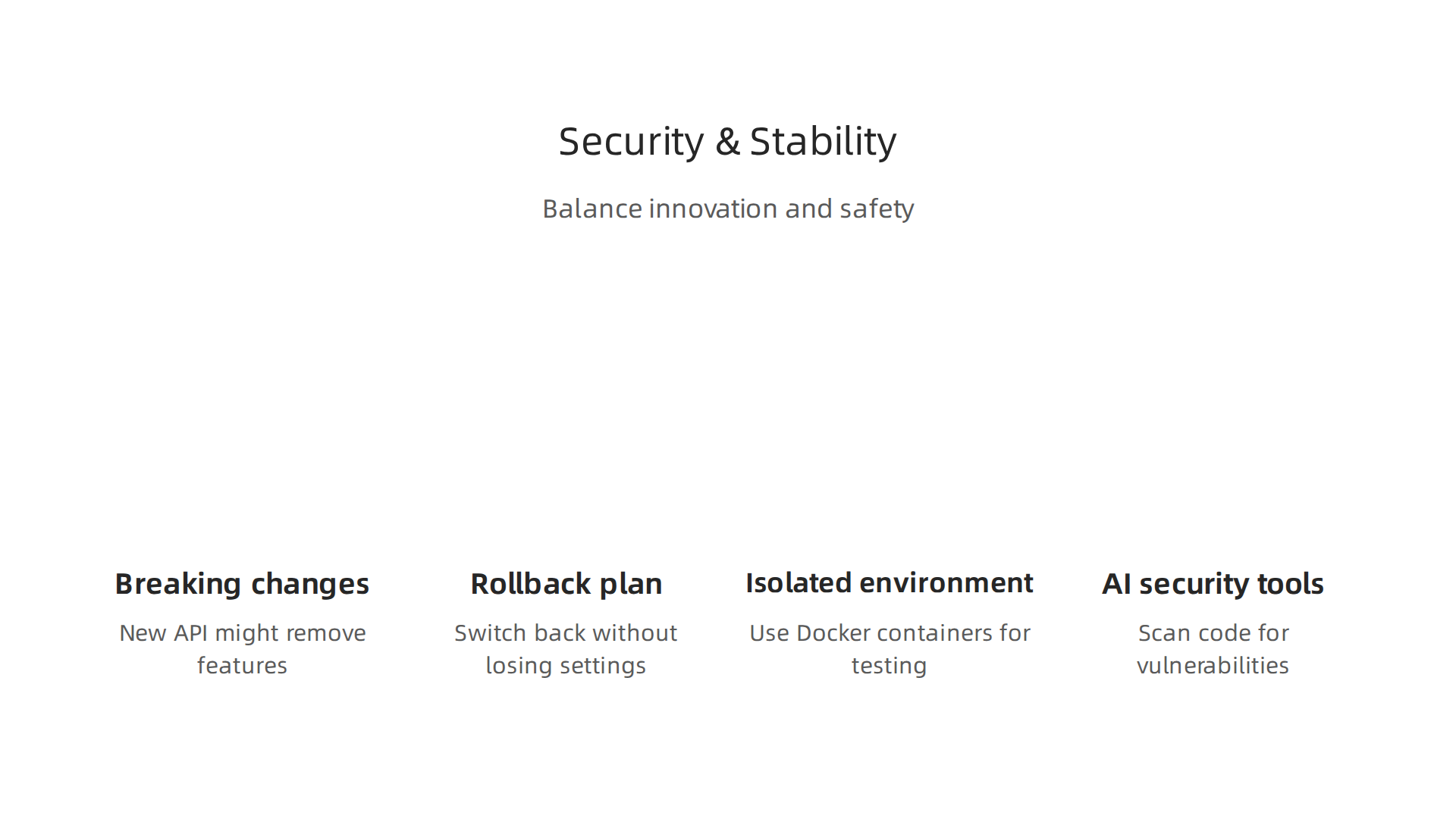
Security patches arrive fast, which is great for protecting your work. But nightly builds can also introduce new bugs or even fresh vulnerabilities. Balancing quick updates with stability is something every Insiders user needs to think about.
The most common risk is a breaking change. A new API might remove a feature you rely on, or a language server update could break your create next app workflow. When that happens, you need a rollback plan. Microsoft makes it easy to switch back to the stable version of VS Code without losing your settings. You can keep both installed side by side and choose which one to launch for a given project. This gives you a safety net when an Insiders update causes problems.
Another smart move is running Insiders in an isolated environment. Docker containers are a great choice here. You can spin up a container with VSCode Insiders installed, do your testing, and then discard it when you are done. This keeps any instability away from your main development setup. It also makes it easy to test integrations with tools like a third party fetch app without polluting your host system.
AI tools have made security even more important. Modern coding assistants can suggest code quickly, but you still need to review it for vulnerabilities. Many developers now use dedicated AI security tools for developers to scan their code in real time. These tools often support the latest APIs found only in Insiders, so you can catch issues before they reach production.
To stay ahead of breaking changes and learn the best rollback strategies, check out this guide on AI coding assistants trust and stability. It covers how to build confidence in tools that update as frequently as Insiders.
And if you want clear daily updates on AI trends and security best practices that affect your development setup, subscribe to The AI Newsletter Worth Reading. It delivers concise insights straight to your inbox, helping you make smarter decisions about the tools you use.
Summary
This article explains what VSCode Insiders is, why it matters for modern developers, and how to use it without disrupting your daily work. It covers the nightly build model, the main AI and debugging features that appear first in Insiders, and practical steps for installing and syncing settings alongside the stable editor. You’ll learn best practices: run Insiders side-by-side, check changelogs before updating, test on non‑critical projects, and use containers or isolated environments to reduce risk. The guide also compares Insiders with stable and other preview programs, outlines how extensions and the community interact with nightly builds, and highlights security and rollback strategies. By the end you’ll know which Insiders features to try, how to evaluate stability, and how to keep your workflow safe while staying on the cutting edge.